 Macaroom
What is System Data on Mac?
System Data is everything macOS can't fit into its other storage categories: app caches, app data, iPhone backups, logs, temporary files and developer tools. Some of it is safe to clear, some isn't. Here's how to tell the difference.
The short answer
System Data isn't a folder you can open. It's a leftover bucket. In System Settings › General › Storage, macOS sorts your disk into Applications, Documents, Photos, Messages and so on, and anything that doesn't fit one of those is counted as System Data. Apple describes it as files used by the system such as log files, caches, VM files and other runtime resources, plus temporary files, fonts, app support files and plug-ins.
That's why it can be huge, and why Storage settings won't let you click into it: Apple says you can't manage its contents from there.
On older versions of macOS this same bucket was called Other.
What's usually inside
| What | Where it lives | Safe to remove? |
|---|---|---|
| App caches | ~/ | Usually yes. Apps rebuild them, though they may be slower the first time. Details |
| iPhone and iPad backups | ~/ | Old ones, yes. Manage them in Finder. Details |
| App data | ~/, ~/ | Careful. This is apps' real data: settings, libraries, chats. Clean it up from inside the app. |
| Xcode build data | ~/ | Yes. Xcode rebuilds it. Details |
| iOS device support files | ~/ | Mostly. Old iOS versions can go. Details |
| Simulators | ~/ | Unused ones, yes. Remove them from Xcode. Details |
| Docker and virtual machines | ~/ | From inside the app. Details |
| Time Machine local snapshots | Managed by macOS | Leave them. macOS removes them on its own when it needs space. |
| Logs, VM and swap files | System folders | Leave them. macOS manages these. |
Everyone's mix is different. For most people it's app data, caches and old phone backups. On a developer's Mac it's often mostly Xcode, simulators and package caches.
What it looks like on a real Mac
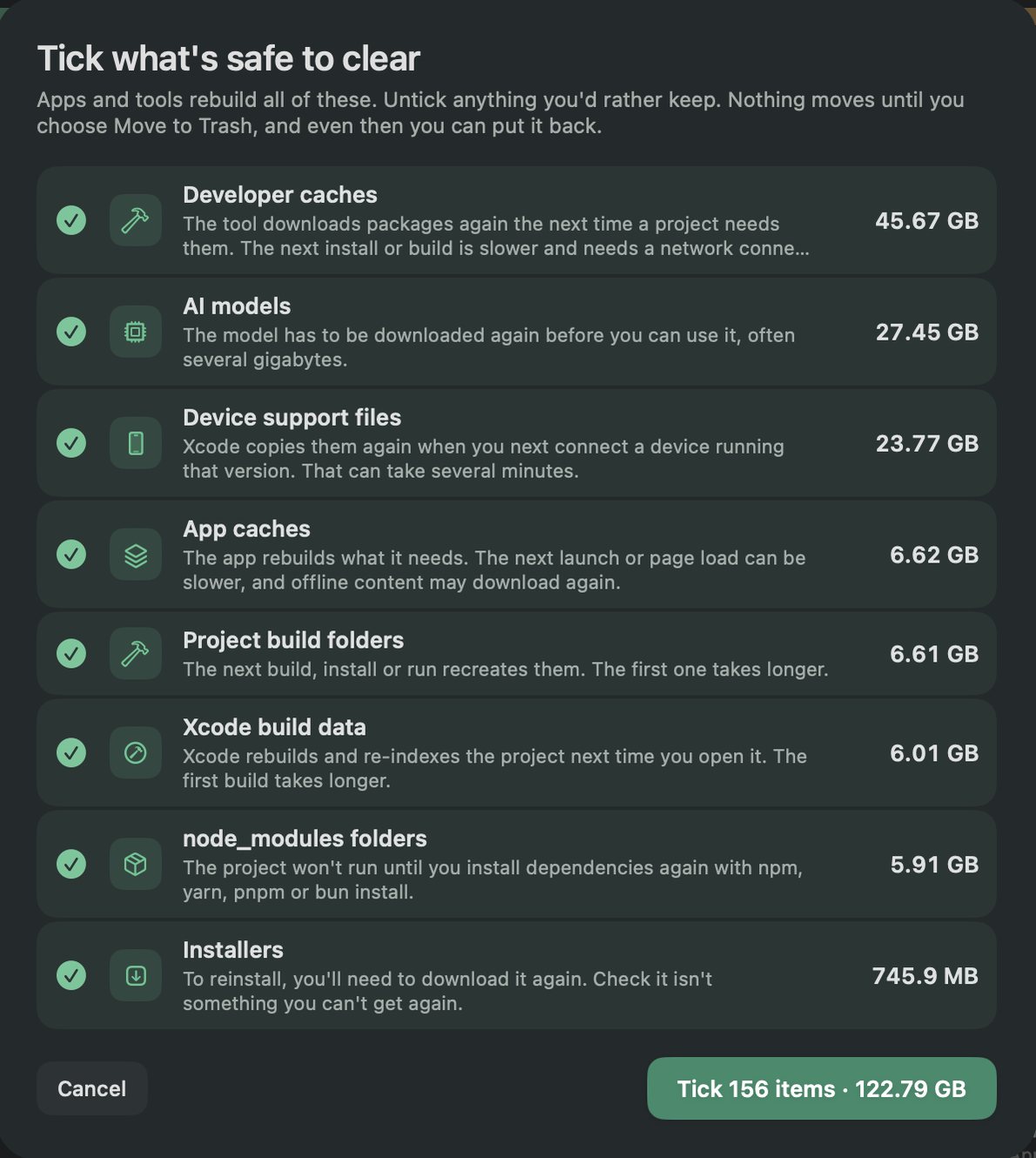
Here's what a scan of our own Mac found once each piece had a name. Over 120 GB of it was files that apps and tools rebuild on their own:
How to clear System Data safely
- Find out what yours is. Before deleting anything, see which of the items above is big on your Mac. Guessing is how people delete things they needed.
- Clear what rebuilds itself. Caches, Xcode build data and package caches are the safe wins. Apps recreate them when they need them.
- Delete old iPhone backups in Finder: select your device, then Manage Backups.
- Clean app data from inside the app. Messages, Mail, Photos and chat apps keep their data here. Use their own settings, for example Messages › Settings › Keep messages.
- Restart. Some temporary files are cleared when your Mac starts up. Apple also suggests starting up in safe mode once to clear some system caches.
- Empty the Trash. Until you do, the space isn't free.
Want the detailed version, with where to click? How to clear System Data on Mac, step by step.
What not to do
- Don't delete folders in
/Systemor/Librarybecause they're big. - Don't empty folders you can't identify. If you don't recognise it, leave it.
- Don't run "cleaner" scripts you found online that delete whole folders at once.
- Don't expect the number to hit zero. Some System Data is always there and is supposed to be.
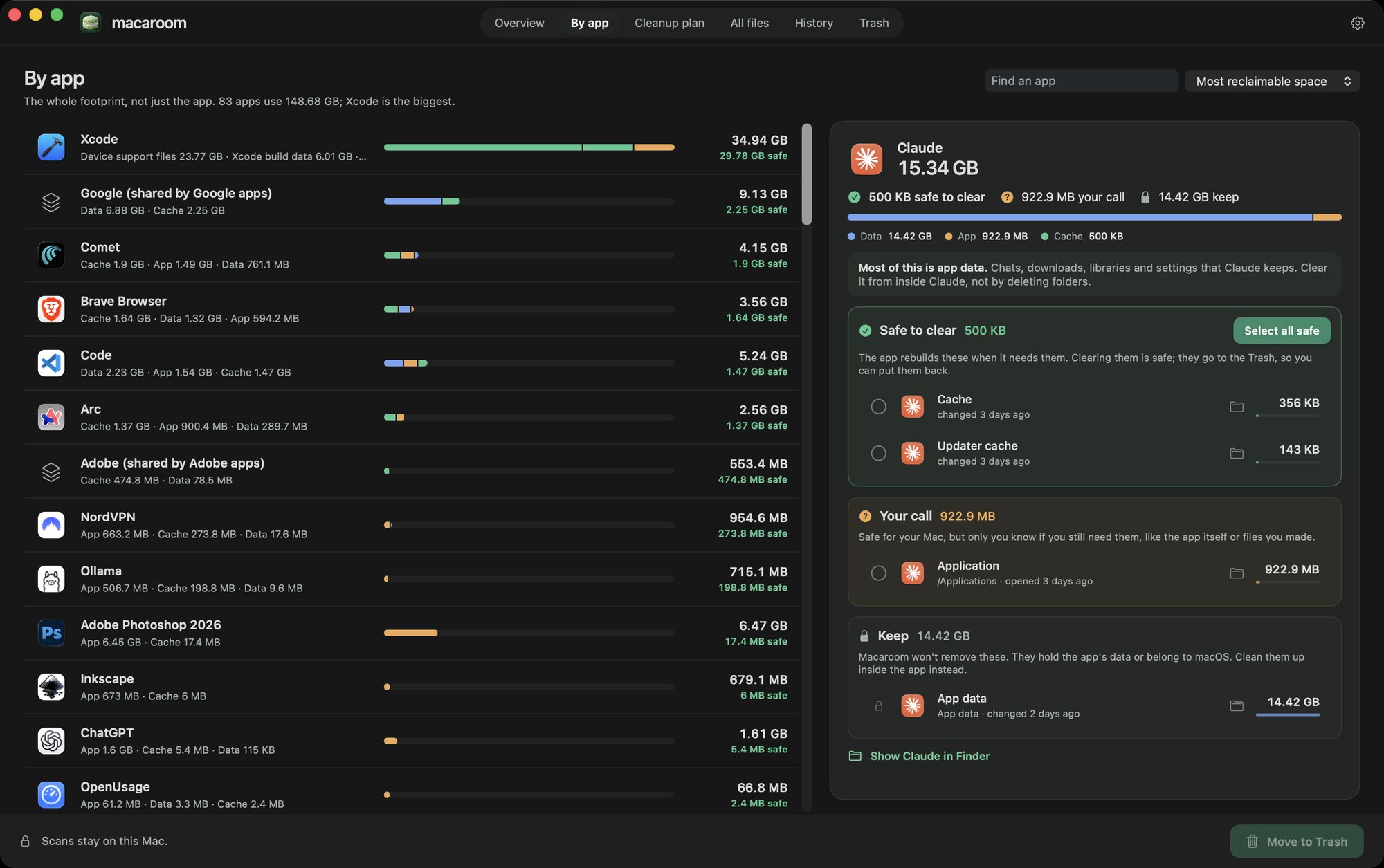
Find out by app
A lot of System Data belongs to apps you use every day. Seeing it per app makes the decision easier: a browser's cache is safe to clear, a chat app's data is not.
Questions people ask
Is it safe to delete System Data on Mac?
Parts of it. Caches, Xcode build data and old iPhone backups are safe to remove. App data, logs, swap files and Time Machine snapshots should be left alone or cleaned from inside their app. Never delete System Data by emptying folders in /System or /Library.
Why is my System Data so big?
Usually a few large things: old iPhone backups, app caches, a chat or mail app's data, or developer tools like Xcode and Docker. It can also grow for a while after an update, while macOS keeps temporary files. See why System Data gets huge.
Why does System Data keep growing back?
Caches and logs grow back because apps keep using them. That's normal. Clearing them is a one-off way to get space back when you need it, not something to do every week.
Why doesn't the number match other tools?
macOS calculates its categories its own way, including shared APFS space, local snapshots and purgeable space. Any tool that measures files directly gets a somewhat different total. What matters is finding the big items you can act on.
Can I just restart to clear System Data?
A restart clears some temporary files, so the number can drop a little. It won't remove caches, backups or app data. Those need to be cleared on purpose.
Related guides
- How to clear System Data on Mac, step by step
- System Data taking 100 GB or more? Here's why
- Mac storage full? Where the space really went
- What happened to Other storage on Mac?
See it on your own Mac
Macaroom scans your Mac, names what each chunk of storage is, and marks what's safe to clear. Anything you remove goes to the Trash, so you can put it back.
Get Macaroom